How to Delete All Emails on iPhone
In the iPhone Mail app, open a mailbox, tap Select, choose Select All, then tap Delete. Repeat for any other mailboxes you want to clear, and empty each account’s Trash when you’re sure you no longer need those messages. There is no single Select All button for every folder in every account.



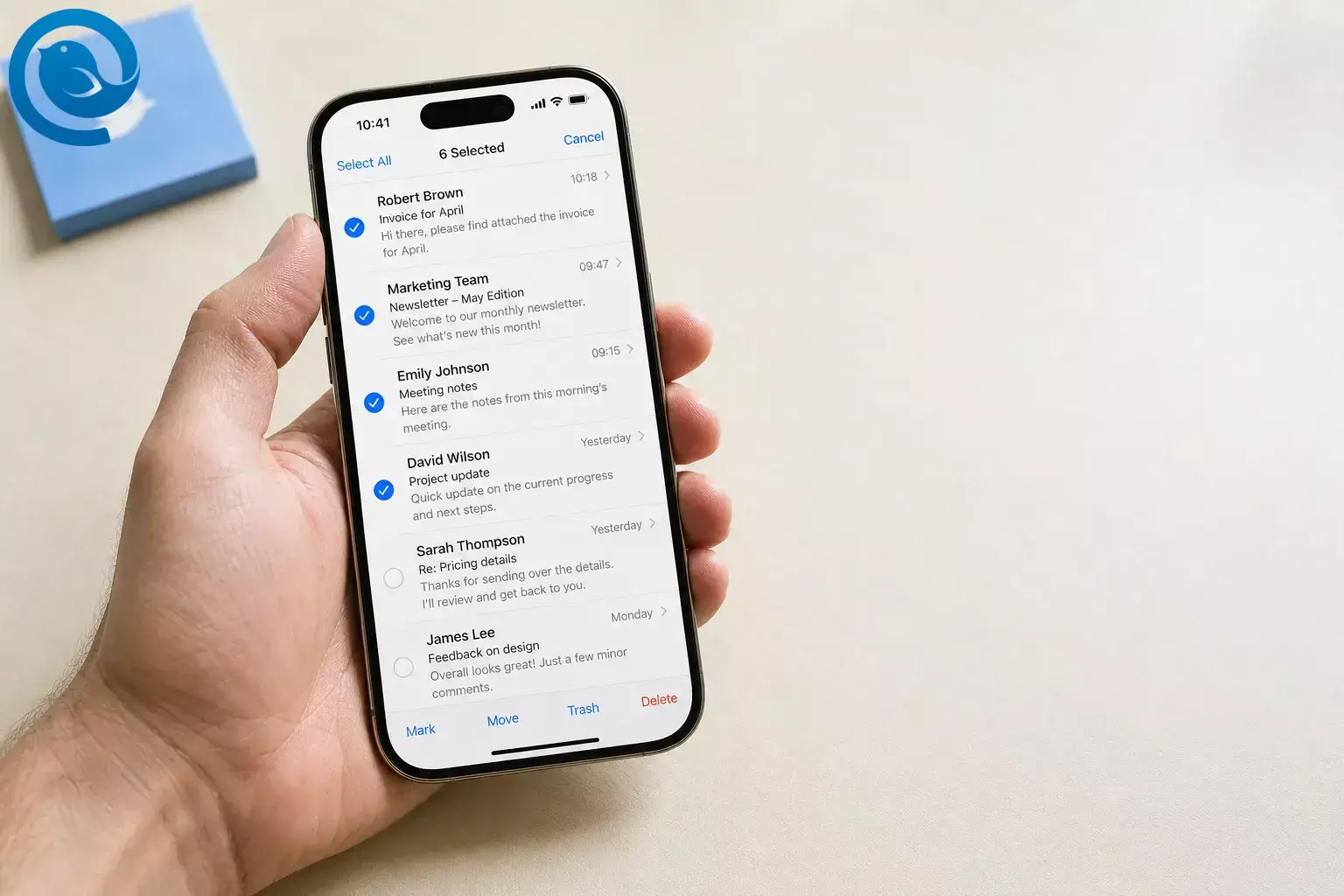
In the iPhone Mail app, open a mailbox, tap Select, choose Select All, then tap Delete. Repeat for any other mailboxes you want to clear, and empty each account’s Trash when you’re sure you no longer need those messages. There is no single Select All button for every folder in every account. [2]
Key takeaways
- Select and delete messages one mailbox at a time; repeat for other folders or accounts.
- Check what you’ve selected before deleting, especially in All Inboxes.
- If Mail offers Archive instead of Delete, choose the delete option or change the account setting.
- Review and empty Trash separately in each account you want to clear.
- Check iPhone storage and email-account storage separately.
Before you start
Check that you’re in the right account, and save any messages or attachments you need to keep. If your mail syncs across devices, deleting messages may affect those devices too. Review Trash before emptying it; recovery after permanent deletion may not be possible. [7] [3]
Delete all messages in a Mail mailbox
Delete all messages in a Mail mailbox
- Open the mailbox. In Mail, tap back until you reach Mailboxes. Open the Inbox under the account you want to clear. All Inboxes includes inbox messages from multiple accounts, so use it only if that’s what you intend.
- Show List View if needed. If Select All isn’t available, tap More (…) near the top of the message list and choose List View. [2]
- Select the messages. Tap More (…), then Select. If your version of Mail shows Edit instead, tap that. Choose Select All, or tap individual selection circles if you want to keep some messages. Check what’s selected before continuing. [2]
- Delete, don’t archive. Tap the trash-can icon or Delete, then confirm if prompted. If you see Archive instead, touch and hold it and choose the option to delete the selected messages. [2]
- Check the result. Reopen the Inbox. If messages remain, select and delete them as needed. Return to Mailboxes and repeat in any other Inbox or folder you want to clear; deleting one Inbox does not clear Sent or other folders.
Clearing a very large mailbox? Apple suggests using your email provider’s website to delete a large number of messages. You can open it in your iPhone browser. [2]
If Mail shows Archive instead of Delete
The account may be set to move discarded messages into Archive. For most accounts, open Settings → Apps → Mail → Mail Accounts → [your account] → Account Settings → Advanced. Under Move Discarded Messages Into, choose Deleted Mailbox. For iCloud Mail, look for Mailbox Behaviors in its iCloud settings. Return to Mail and check the available action. [2] [3]
If messages disappeared but Trash is empty, check that account’s Archive or All Mail mailbox. Archiving removes messages from the Inbox without sending them to Trash. [3]
Empty Trash in each account
- From Mailboxes, open Trash under the account you just cleared.
- Review its messages. If you need one, open it and move it to another mailbox before deleting anything from Trash. [3]
- Tap More (…) → Select, or Edit if that’s what your version shows. Select the messages, tap Delete, and confirm if prompted. If your account offers Empty Trash, you can use that instead. Repeat for other accounts whose Trash you want to empty. [2] [1]
Check whether you freed storage
Open Settings → General → iPhone Storage to check device storage. If you meant to free space in your email account instead, check that account’s storage separately. For iCloud Mail, messages and attachments count toward iCloud storage; clearing mail does not guarantee a noticeable change in available space on your iPhone. [4] [1]
Gmail and Outlook iPhone apps
Gmail: Touch and hold a message, tap Select all, then Delete. Gmail selects up to 50 messages by default, so repeat for more. To clear deleted mail, open Menu → Trash → Empty trash now. [5]
Outlook: Touch and hold a message or tap its selection circle. Select more messages, or use the three-dot menu’s Select All option, then tap the trash-can icon. Check Deleted Items or Trash afterward. [6]
Frequently asked questions
Can I delete every email on my iPhone at once?
Not across every folder in every account with one selection. Select messages in the mailbox you open, then repeat for other folders or accounts you want to clear.
Why can’t I see Select All?
Switch to List View using More (…), then enter selection mode again. [2]
Can I recover an email I deleted?
Check Trash before emptying it. You can move a message you want to keep back to another mailbox. After permanent deletion, recovery depends on the email provider and may not be possible. [3]
Can I use Mailbird to delete emails on my iPhone?
Mailbird is on Android and iPhone too. Get it on Google Play and the App Store. The steps in this guide are for the iPhone Mail app. [8]
Managing email on your desktop?
Mailbird is on Android and iPhone too. Get it on Google Play and the App Store.
Sources
- Apple Support: Manage your iCloud storage on your Apple device
- Apple Support: Delete emails on your iPhone or iPad
- Apple iPhone User Guide: Delete and recover emails in Mail
- Apple Support: How to check storage on your iPhone and iPad
- Gmail Help: Delete messages in Gmail on iPhone
- Microsoft Support: Select multiple emails in Outlook for iOS
- Apple iCloud User Guide: Delete email in Mail on iCloud.com
- Mailbird Support: Mobile app availability


