How to Add Annual Leave and UK Bank Holidays to Your Outlook Calendar
To block out annual leave in Outlook, create an all-day event on your work calendar, set it to Out of office and leave the attendee field empty. Colleagues can then check your availability without receiving an invitation. You can add bank holidays separately to help plan your time off.



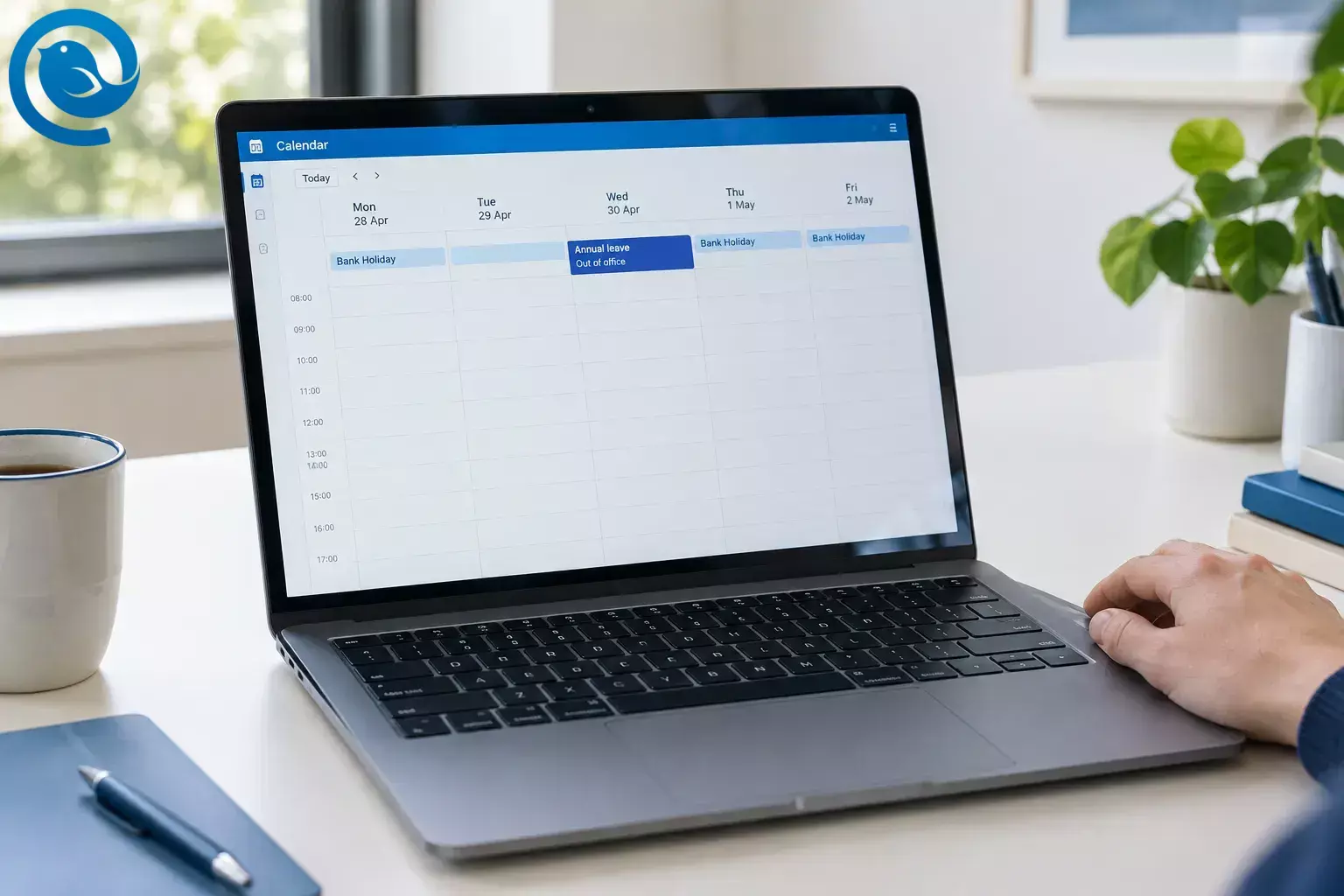
To block out annual leave in Outlook, create an all-day event on your work calendar, set it to Out of office and leave the attendee field empty. Colleagues can then check your availability without receiving an invitation. You can add bank holidays separately to help plan your time off.
Follow the instructions for new Outlook, classic Outlook or Outlook on the web. Allow about five minutes.
Quick checklist
- Leave saved on the correct work calendar
- Every day away covered
- Your own event set to Out of office
- Colleagues’ visibility checked
- Any separate team reminder set to Free
- Bank holidays added once and checked against the right UK nation
Before you start
Have your approved leave dates and work calendar to hand. For bank holidays, check whether you need dates for England and Wales, Scotland, or Northern Ireland. Use a simple event title such as “Annual leave” rather than putting personal travel details on a calendar colleagues may be able to view.
How to block out annual leave in Outlook
Use the steps for your version of Outlook. Save the event to your work calendar, especially if you have more than one account.
New Outlook
- Open Calendar and select Home → New Event.
- Enter “Annual leave”, choose your leave dates and turn on All day. Leave the attendee field empty.
- Open the availability menu, which may initially say Busy, and choose Out of office. Select Save, then reopen the event to check that every day away is covered. [1]
Classic Outlook
- Open Calendar and select Home → New Appointment.
- Enter “Annual leave”, set the dates and tick All day event. Don’t add attendees.
- Set Show As → Out of office, then select Save & Close. Check the saved event: an all-day event set to Free can leave you looking available. [2]
Outlook on the web
- Open Calendar and select New event.
- Enter “Annual leave”, choose your dates and turn on All day. Leave the attendee field empty. If you can’t see the availability setting, open More details. [3]
- Under Show as, choose Out of office; an older web layout may call this Away. Select Save and check the event’s dates and status. [4]
Make your leave visible without filling colleagues’ calendars
Check your availability first. Ask a colleague to look at one of your leave dates, or review your calendar’s sharing permissions. Can view when I’m busy lets someone see that you’re unavailable without seeing the event title; Can view titles and locations reveals the title too. In Outlook on the web, use Share your calendar or your calendar’s Sharing and permissions menu to review access. Your organisation may limit these settings. [5]
Only send an invitation if someone needs a reminder on their own calendar. Create a separate all-day invitation for those colleagues, set it to Free, and turn off response requests and reminders where available. Keep the event on your own calendar set to Out of office. An event with no attendees sends no invitation. [1]
How to add bank holidays to your Outlook calendar
New Outlook or Outlook on the web
In Calendar, select Add calendar → Holidays. Search for the available UK or regional holiday calendar, select it and check that it appears in your calendar list. For a Microsoft 365 work or school account, Microsoft recommends adding holidays through Outlook on the web if you want the holiday calendar to receive updates. [6]
Classic Outlook
Go to File → Options → Calendar → Add Holidays, select the available country or region and choose OK. Check whether holidays have already been added before doing this again, or you may create duplicates. If you want an updating holiday calendar, use Outlook on the web rather than importing the classic Outlook list a second time. [6]
Check the dates for your UK nation
Compare upcoming entries with the GOV.UK bank-holiday list for England and Wales, Scotland, or Northern Ireland, as appropriate. The dates differ by nation. A holiday calendar helps you see the dates; it does not replace an annual-leave event on your own work calendar. [7]
Troubleshooting
- Colleagues still see you as free: check that the leave event is on your work calendar and its Show as setting is Out of office, not Free. [2]
- Your invitation blocks colleagues’ time: change the separate team invitation to Free. Leave your personal event set to Out of office. [1]
- Colleagues can’t see “Annual leave”: availability-only access does not show the title. If it’s appropriate to share titles, review your calendar permissions; otherwise, tell the relevant colleagues directly. [5]
- A leave date is missing: reopen the event, correct the date range and check the saved event in Calendar.
- Bank holidays appear twice: remove an extra holiday calendar in new Outlook or on the web. In classic Outlook, use View → Change View → List to find and delete duplicate holiday items. [6]
- A bank holiday looks wrong: check that you selected the right UK nation and compare the date with GOV.UK. An older imported holiday list may be incomplete. [7]
- You can’t find “Out of office” on the web: open More details and look for Show as. An older layout may use Away. [4]
Other types of time off
- Half-day leave: turn off All day, enter the hours you’ll be away and set the event to Out of office.
- Company closure: add an event on your work calendar and set it to Out of office if you won’t be available. Don’t assume a country holiday calendar includes company-specific closures.
- Shared team leave calendar: if your organisation uses one, add a brief Free entry there as well as an Out of office event on your own calendar. [8]
Frequently asked questions
Should annual leave be “Busy” or “Out of office” in Outlook?
Choose Out of office for your own leave event. It marks you unavailable and makes your status clearer than Busy. [1]
How do I block out annual leave without inviting everyone?
Create an all-day event on your work calendar, set it to Out of office and leave the attendee field empty. Colleagues who can check your availability can see that you’re away. [1]
How can colleagues have a reminder without their time being blocked?
Send only those colleagues a separate all-day invitation set to Free. Keep your own leave event set to Out of office. [1]
Will a bank-holiday calendar automatically block my time?
Don’t rely on it to set your personal availability. If you won’t be working on a particular day, check your status and add your own Out of office event where needed.
Does an annual-leave event send automatic email replies?
No. Calendar availability and email replies are separate. For more on out-of-office email replies, see Mailbird Support’s out-of-office guidance or our out-of-office guide.
Prefer a desktop email client?
Make your Outlook calendar changes in Outlook using the steps above. If you’d like to try Mailbird for managing email on your computer, download the desktop app. Mailbird does not have a built-in out-of-office autoresponder; set automatic replies with your email provider if you need them. [9]
Sources
- Microsoft Support — Add your out-of-office event to others’ Outlook calendars
- Microsoft Support — Change an appointment, meeting or event in Outlook
- Microsoft Support — Create an appointment in Outlook on the web
- Microsoft Support — Calendar in Outlook Web App
- Microsoft Support — Share your calendar in Outlook on the web
- Microsoft Support — Add holidays to your calendar in Outlook
- GOV.UK — UK bank holidays by nation
- Microsoft Support — Block out time away on a group calendar
- Mailbird Support — Out-of-office replies and Mailbird


