How to Compare Email Apps Based on Real-World Performance in 2026
Email client performance directly impacts your productivity and daily workflow. This guide provides a practical framework for evaluating email apps based on real-world metrics that matter—including speed, resource usage, synchronization efficiency, and interface responsiveness—helping you choose the best client for managing multiple accounts and demanding communication needs.



If you've ever opened your email client only to watch it freeze while loading messages, or struggled with sluggish performance when switching between multiple accounts, you're not alone. These frustrations affect professionals worldwide who depend on email for critical daily communication. The performance of your email application directly impacts your productivity, stress levels, and ability to manage your workload effectively.
Understanding how to evaluate email apps based on actual, real-world performance—rather than marketing claims—has become essential as professionals increasingly manage multiple accounts, large mailboxes, and demanding communication workflows. This comprehensive guide provides you with a practical framework for comparing email clients using the metrics that actually matter for your daily experience.
Why Email Client Performance Matters More Than You Think

The email client you choose affects far more than just how quickly messages appear in your inbox. According to comprehensive testing conducted by TechRadar, email client performance encompasses security protocols, encryption support, integration capabilities, and user interface quality—all of which contribute to your overall perception of application responsiveness and reliability.
When your email client performs poorly, the impact cascades through your entire workday. Slow application launch times mean you waste precious minutes waiting for your communication hub to become accessible. Inefficient synchronization creates anxiety about whether you've received critical messages. Resource-heavy applications drain your system performance, forcing you to close other programs or tolerate system-wide slowdowns that affect everything you do.
The challenge extends beyond simple speed metrics. Research from email testing authority Litmus reveals that there exist more than 300,000 different ways a single email can render across various email clients and devices, making comprehensive performance evaluation essential for understanding how applications will perform in real-world scenarios. This rendering complexity means that perceived performance—how fast an application feels to you as the user—often matters more than raw benchmark metrics.
The Real-World Impact of Poor Email Performance
Users managing high email volumes report specific pain points that directly affect their work quality and job satisfaction. Professionals processing hundreds of daily messages describe the frustration of waiting for search operations to complete, experiencing interface lag when navigating folders, or watching their entire system slow down because their email client consumes excessive memory.
One documented case from user feedback shows a professional managing 1000+ unread emails who successfully processed all messages within approximately 4 hours using an optimized email client, describing the experience as representing "the fastest way to process emails bar none." This demonstrates how the right performance characteristics can transform email management from an overwhelming burden into a manageable task.
The emotional impact extends beyond mere inconvenience. When your primary communication tool performs unreliably, it creates persistent low-level stress. You second-guess whether messages have actually sent, worry about missing important communications during synchronization delays, and feel frustrated by the disconnect between your mental processing speed and your tool's responsiveness.
Critical Performance Metrics That Actually Matter

Effective email client comparison requires evaluating multiple performance dimensions that extend beyond simple speed benchmarks. Based on industry testing methodologies established by major tech publications, these metrics provide the framework for understanding real-world performance.
Application Launch Time and Responsiveness
Your email client should launch quickly enough that you don't experience noticeable delay between clicking the icon and accessing your messages. According to mobile app performance benchmarking standards, applications should launch within 2-3 seconds on modern devices, with anything exceeding 5 seconds representing significantly degraded user experience. Top-performing applications like Instagram, WhatsApp, and Spotify consistently achieve 1-2 second cold start times through substantial optimization investments.
You should evaluate both cold starts (initial launches after system restart) and warm starts (returning to applications already running in background). Performance should remain consistent across both scenarios. If your email client launches quickly when already running but takes substantially longer after a system restart, this indicates potential initialization inefficiencies that will frustrate you during your first morning email check.
Interface responsiveness after launch matters equally. The application should display your inbox immediately and respond instantly to clicks, folder navigation, and search queries. Any perceptible lag between your action and the application's response creates friction that accumulates throughout your workday.
Email Synchronization Efficiency
Synchronization performance determines how quickly you receive new messages and how reliably your actions (sending emails, moving messages to folders, applying filters) execute across your devices. Efficient email clients synchronize new messages within a couple of seconds when using IMAP accounts, ensuring you stay current with incoming communication without constant manual refreshing.
Poor synchronization creates multiple problems. Delayed message delivery means you might miss time-sensitive communications. Slow synchronization of sent messages leaves you uncertain whether your emails actually transmitted successfully. Inefficient folder synchronization forces you to wait after organizing messages before you can confidently move to your next task.
The best email clients handle synchronization transparently in the background without consuming excessive system resources or creating noticeable interface delays. You should be able to continue working with your inbox while synchronization occurs, without experiencing stuttering, freezing, or slowdowns.
Large Mailbox Performance
Email clients must maintain performance even when managing mailboxes containing thousands or hundreds of thousands of messages. Many applications perform acceptably with small mailboxes but degrade significantly as your message archive grows, creating progressively worsening user experience over time.
Test large mailbox performance by evaluating search speed, folder navigation responsiveness, and filtering operation efficiency with realistic data volumes. If you typically maintain 50,000+ messages in your archive, your email client should handle search operations and folder navigation without noticeable delay. Applications that slow down with large mailboxes force you into time-consuming workarounds like archiving messages to external storage or maintaining multiple separate accounts.
User feedback indicates that well-architected email clients handle large mailboxes without significant performance degradation, maintaining search and filtering responsiveness even with substantial message volumes. This performance characteristic reflects underlying architectural efficiency and proper database optimization.
System Resource Utilization
Your email client's resource consumption directly impacts your entire system's performance. According to application performance monitoring best practices, critical metrics include CPU usage, memory consumption, and disk I/O patterns during both typical usage and demanding operations.
Excessive memory consumption creates system-wide problems. Web-based container email applications can consume 1-3 GB of RAM during normal operation, potentially exceeding 4 GB during peak activity. This substantial memory footprint forces you to close other applications, tolerate system slowdowns, or upgrade your hardware. In contrast, native email applications typically utilize 200-500 MB of RAM for managing multiple accounts—representing 5-6 times better efficiency.
Users switching from resource-heavy web-based solutions to efficient native applications report immediate improvements in system responsiveness, battery life on laptops, and the ability to run additional applications simultaneously without performance compromise. These real-world benefits demonstrate why resource utilization represents a critical performance metric rather than merely a technical specification.
How Email Client Architecture Affects Your Experience

The fundamental architectural decisions email client developers make directly determine the performance characteristics you experience daily. Understanding these architectural approaches helps you predict how different applications will perform under your specific usage patterns.
Local Storage vs. Cloud-Based Architecture
Email clients implement either local storage (keeping all email content on your computer) or cloud-based storage (maintaining messages on remote servers). According to Mailbird's technical guide, local storage architecture provides direct performance advantages by avoiding the latency associated with cloud synchronization overhead.
Local storage applications like Mailbird store all email content—including drafts, sent messages, and received emails—exclusively on your local computer with no server-side storage maintained by the application provider. This architectural approach delivers rapid application responsiveness because the client accesses data directly from local storage rather than waiting for network requests to remote servers.
Users consistently report that local storage email clients synchronize messages within a couple of seconds when using IMAP accounts, with interface operations executing instantly because they manipulate local data rather than waiting for server responses. This architectural advantage becomes particularly noticeable when working with poor network connectivity or during periods of internet service disruption.
Cloud-based architectures offer different trade-offs. They enable seamless access across unlimited devices without local storage requirements, but introduce latency for every operation requiring server communication. The best cloud-based implementations minimize this latency through aggressive caching and predictive pre-loading, but fundamental network physics means they cannot match the instant responsiveness of well-implemented local storage architectures.
Native Applications vs. Web-Based Containers
Email clients implement either native application architectures (applications built specifically for their target operating system) or web-based container approaches (essentially browsers running web applications). This architectural distinction profoundly affects performance, resource utilization, and user experience.
Native applications integrate directly with operating system capabilities, enabling efficient resource utilization and responsive interface performance. They access system APIs designed specifically for email client functionality, implement platform-specific optimizations, and avoid the overhead of running a complete browser environment.
Web-based container applications like Shift run email interfaces inside embedded browser engines, creating substantial memory overhead. Independent analysis reveals that these applications typically consume 1-3 GB of RAM during normal operation, representing 5-6 times the memory footprint that native applications consume. Users experiencing performance issues with web-based containers report consistent system-wide slowdowns, reduced battery life on MacBook devices, and CPU overhead persisting even during application idle periods.
The performance difference becomes particularly pronounced when managing multiple email accounts. Native applications handle multiple accounts through efficient internal account switching, while web-based containers essentially run multiple browser tabs simultaneously—each consuming its own memory allocation and processing resources.
How to Test Email Client Performance Yourself
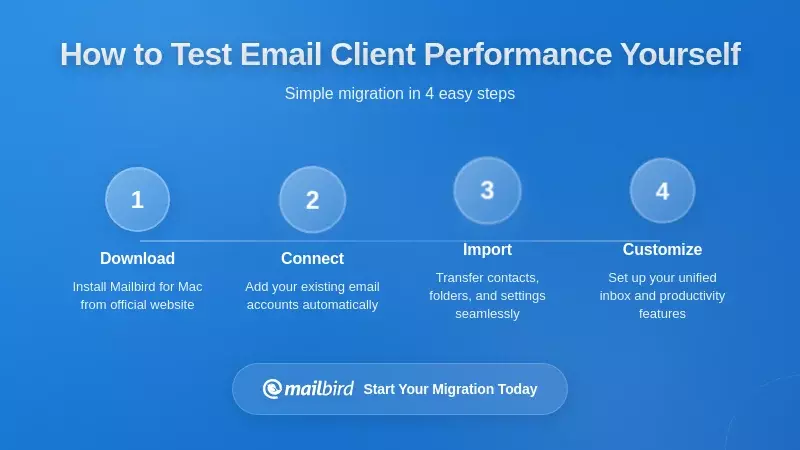
Rather than relying solely on published benchmarks, you should conduct systematic performance evaluation with your actual usage patterns and mailbox sizes. This hands-on testing reveals how applications will perform in your specific environment.
Establish Your Baseline Requirements
Begin by documenting your current email management requirements. Record the number of email accounts you manage simultaneously, your typical inbox size across all accounts, how frequently you check email throughout the day, and specific features you require (unified inbox, advanced filtering, calendar integration, contact management).
This baseline determines which performance metrics matter most for your specific use case. If you manage a single account with modest message volume, application launch time and interface responsiveness represent your primary concerns. If you juggle five accounts with combined archives exceeding 100,000 messages, large mailbox performance and multi-account synchronization efficiency become critical.
Understanding your requirements also helps you identify which advanced features you actually need versus which represent unnecessary complexity that might compromise performance. Many users discover they can achieve better performance by selecting focused applications that excel at core email functionality rather than feature-rich platforms attempting to serve every possible use case.
Test Application Launch Performance
Measure how long each email client takes to display a usable interface after clicking the application icon. Conduct this test multiple times to establish average launch time rather than relying on single measurements that may reflect temporary system overhead.
Test both cold starts (launching after system restart when the application must initialize completely) and warm starts (returning to the application after switching to other programs). Performance should remain acceptable in both scenarios, though some difference is expected and acceptable.
During testing, note not just the time until the window appears, but the time until the interface becomes fully responsive and displays your actual inbox content. Some applications create the illusion of fast launch by displaying an empty interface quickly but then require additional seconds to load and display actual messages.
Evaluate Performance with Your Actual Mailbox
Configure each email client you're evaluating with your real email accounts and actual mailbox sizes. Performance testing with empty or minimal mailboxes fails to reveal how applications handle the data volumes you'll actually encounter.
Create test scenarios involving the operations you perform most frequently: searching for specific messages, filtering by sender or subject, navigating between folders, applying bulk actions to multiple messages, and composing replies while referencing previous correspondence. Time how long each operation takes and note any interface lag, stuttering, or unresponsiveness.
Pay particular attention to performance consistency over extended usage periods. Some applications perform well initially but degrade after hours of continuous operation, potentially indicating memory leak issues or inefficient resource management. Test sustained performance by keeping the application running throughout a full workday while conducting your normal email activities.
Monitor System Resource Consumption
Use your operating system's resource monitoring tools (Windows Task Manager, macOS Activity Monitor, or Linux system monitors) to record each email client's CPU usage, memory consumption, and disk I/O during typical usage and demanding operations.
Record baseline resource usage when the application sits idle with all accounts synchronized. This reveals the overhead cost of simply keeping the application running. Then monitor resources during demanding operations like syncing large mailboxes, searching extensive archives, or processing bulk filter operations.
Compare resource consumption across the email clients you're evaluating. Substantial differences in memory usage or CPU consumption indicate architectural efficiency differences that will affect your overall system performance, particularly if you run multiple demanding applications simultaneously.
Understanding the 2026 Email Client Landscape

The email client market has evolved significantly, with different applications optimizing for specific use cases and user priorities. According to analytics compiled from over 1.2 billion email opens, Apple Mail dominates with 60.6% market share, followed by Gmail at 29.10%, Outlook at 4.02%, Yahoo Mail at 2.45%, and Google Android at 1.60%.
These market leaders reflect default email client usage and established provider relationships rather than performance optimization alone. However, specialized email clients demonstrate growing adoption among users specifically seeking performance advantages for particular workflows.
Microsoft Outlook: Enterprise Integration vs. Performance
Microsoft Outlook remains the default choice for business users embedded in Microsoft ecosystem, primarily because of deep integration with Microsoft 365, Teams, and Exchange infrastructure. According to Microsoft's official feature comparison documentation, the new Outlook for Windows introduces modern architectural improvements including Copilot integration and redesigned interface components.
However, users consistently report that Outlook feels "bulky" compared to more streamlined alternatives, with documented performance challenges when managing large mailboxes. Some organizations have temporarily disabled new Outlook deployments in certain scenarios due to performance issues. Users experiencing performance concerns report that disabling hardware graphics acceleration can improve responsiveness in certain scenarios, indicating that performance optimization sometimes requires manual configuration adjustment.
The performance trade-off—accepting Outlook's occasionally sluggish performance—appears acceptable to business users for whom Microsoft ecosystem integration provides overwhelming value. If you work primarily within Microsoft 365 and require deep calendar, Teams, and SharePoint integration, Outlook's performance limitations may represent an acceptable compromise.
Thunderbird: Open-Source Speed with Extensibility Trade-offs
Thunderbird, the open-source email client, delivers superior baseline performance when installed without extensive add-ons. Testing reveals that Thunderbird ranks among the fastest email clients in benchmarking tests, making it optimal for users prioritizing speed and willing to trade feature richness for responsiveness.
However, Thunderbird's performance advantage diminishes substantially when users install numerous customization add-ons. This illustrates an important principle: extensibility and baseline performance often represent trade-offs. Each add-on introduces additional code execution, memory consumption, and potential compatibility issues that can degrade the application's inherent speed advantages.
Thunderbird appeals to technically sophisticated users comfortable with open-source software who want maximum control over their email environment. If you require specific customizations not available in commercial alternatives and accept the responsibility of managing add-on performance impact, Thunderbird provides excellent baseline performance.
Spark: AI-Powered Inbox Management
According to Spark's 2025 positioning analysis, the platform emphasizes smart inbox features that prioritize email from real people while deprioritizing notifications and newsletters. This represents a shift toward performance through intelligent filtering rather than raw application speed.
Spark integrates AI-assisted capabilities including composer tools, AI assistant functionality, and meeting notes features while maintaining perceived application responsiveness. The platform achieves this through backend AI processing rather than client-side computation, avoiding the resource overhead that local AI processing would create.
Spark appeals to users managing high email volumes who benefit from automated prioritization and AI assistance. If you struggle with inbox overload and want intelligent automation to surface important messages while filtering noise, Spark's AI features may justify any minor performance trade-offs compared to simpler alternatives.
Mailbird: Performance-Optimized Email Management
Mailbird addresses the core performance challenges that frustrate professionals managing multiple email accounts and high message volumes. The application's architecture prioritizes speed, efficiency, and responsiveness while maintaining the comprehensive feature set required for professional email management.
Architectural Performance Advantages
Mailbird implements local storage architecture that stores all email content exclusively on your computer with no server-side storage maintained by Mailbird's systems. According to Mailbird's technical guide, this architectural approach avoids the latency associated with cloud synchronization overhead that affects some competing solutions.
The local storage implementation contributes to rapid application responsiveness. Users consistently report that email synchronization occurs within a couple of seconds when using IMAP accounts, with interface operations executing instantly because they manipulate local data rather than waiting for server responses.
Mailbird's resource utilization patterns demonstrate efficiency compared to web-based container approaches. The application typically utilizes 200-500 MB of RAM for managing multiple accounts—substantially less than competing browser-based solutions that can consume 1-3 GB of RAM during normal operation. This efficiency translates to system-wide performance benefits, enabling you to run additional applications simultaneously without performance compromise.
Real User Performance Feedback
Verified users on G2 and Capterra consistently praise Mailbird's clean interface and fast loading speed, with specific reports indicating that Mailbird delivers "lightning-fast" performance compared to established competitors. Users familiar with both Mailbird and Outlook frequently highlight that Mailbird's simplified design contributes to perceived responsiveness.
One detailed review notes that "Mailbird feels more minimalist, lightweight, and has better shortcuts" compared to Windows Mail, despite Microsoft's application being the system default. Multiple verified reviews specifically emphasize that Mailbird's ability to manage multiple Gmail accounts in unified inbox view represents a significant performance advantage for users juggling numerous communication channels.
A documented user case indicates that a professional managing 1000+ unread emails in a single account successfully processed all emails within approximately 4 hours using Mailbird, describing the experience as representing "the fastest way to process emails bar none." This performance advantage appears particularly pronounced for users managing high email volumes, suggesting that Mailbird's architecture scales better than traditional interface-heavy approaches as message count increases.
Multi-Account Performance Excellence
Mailbird excels specifically at multi-account management—a use case where many competing applications struggle with performance degradation. The unified inbox feature enables you to view messages from all accounts in a single interface without the overhead of running multiple browser tabs or switching between separate account views.
According to Mailbird's pricing page, the Premium license supports unlimited email accounts and unlimited email tracking, enabling comprehensive performance monitoring features without artificial limitations. This unlimited account support maintains consistent performance regardless of how many accounts you manage—a critical advantage for professionals juggling personal accounts, multiple business accounts, and client-specific email addresses.
Cross-platform licensing allows the same license to function on both Windows and macOS versions, enabling consistent performance experience across different operating systems. This coordinated optimization ensures you maintain the same efficient workflow whether working from your desktop workstation or laptop.
Practical Performance Benefits for Your Workflow
Mailbird's performance characteristics translate directly to practical workflow improvements that save you time and reduce frustration throughout your workday. The rapid application launch means you can check email quickly between meetings without waiting for slow startup processes. Instant synchronization ensures you see new messages immediately without manual refreshing or wondering whether important communications have arrived.
The efficient resource utilization means Mailbird doesn't slow down your entire system, enabling you to keep your email client running continuously alongside demanding applications like video conferencing tools, development environments, or creative software. This system-wide efficiency becomes particularly valuable if you work on a laptop where excessive resource consumption drains battery life and generates heat.
For users managing large email archives, Mailbird maintains search and filtering responsiveness even with substantial message volumes. You can quickly locate specific conversations, filter by sender or date range, and organize messages without experiencing the delays that plague applications with inefficient database implementations.
The clean, minimalist interface contributes to perceived performance by reducing visual complexity and prioritizing essential functions. You spend less time navigating complex menu structures or searching for buried features, enabling faster completion of common email tasks. This interface efficiency compounds over hundreds of daily email interactions, saving substantial cumulative time.
Making Your Email Client Decision
Selecting the optimal email client requires balancing performance characteristics against your specific requirements, existing technology ecosystem, and workflow preferences. The "best" email client varies based on your individual circumstances rather than representing a universal recommendation.
Your Performance-Focused Decision Framework
Start by honestly assessing which performance metrics matter most for your specific situation. If you manage a single email account with modest message volume and work primarily within Microsoft 365, Outlook's ecosystem integration may outweigh its performance limitations. If you juggle multiple accounts with large archives and prioritize speed above all else, Thunderbird's baseline performance (without extensive add-ons) provides excellent responsiveness.
For professionals managing multiple accounts who want both excellent performance and comprehensive features without Microsoft ecosystem lock-in, Mailbird delivers the optimal balance. The application provides the speed and efficiency of native architecture, the convenience of unified inbox management, and the professional feature set required for business email—all while maintaining resource efficiency that doesn't compromise your system's overall performance.
If you specifically need AI-powered inbox prioritization and automated message categorization, Spark's intelligent features justify evaluating whether its AI capabilities provide sufficient value to offset any performance differences compared to simpler alternatives.
Conduct Hands-On Trial Evaluation
Rather than making your decision based solely on specifications and reviews, conduct hands-on evaluation with your actual email accounts and real-world usage patterns. Most quality email clients offer trial periods or free versions that enable meaningful testing before committing to a purchase.
Configure each application you're evaluating with your complete account setup and use it as your primary email client for at least several days. This extended evaluation reveals performance characteristics that short tests miss—including how the application handles sustained usage, whether performance degrades over time, and how it performs during your most demanding workflows.
Pay attention to subjective experience alongside objective metrics. An application with excellent benchmark performance that frustrates you with poor interface design or missing essential features won't serve you well regardless of its technical specifications. Conversely, an application that feels responsive and intuitive may provide better practical performance than technically faster alternatives with complex, confusing interfaces.
Plan for Ongoing Performance Evaluation
Email client performance isn't static. Applications receive updates that can improve or degrade performance, your mailbox size grows over time potentially affecting application responsiveness, and your usage patterns evolve as your professional responsibilities change.
Periodically reassess whether your current email client continues meeting your performance requirements. If you notice degrading performance, investigate whether recent updates introduced issues, whether your mailbox size has grown beyond optimal levels, or whether changing usage patterns mean a different application might better serve your current needs.
The email client landscape continues evolving with new entrants and significant updates to established applications. Staying informed about major developments helps you recognize when emerging alternatives might offer substantial performance advantages for your specific use case.
Frequently Asked Questions
What's the fastest email client for managing multiple accounts in 2026?
Based on comprehensive testing and user feedback, Mailbird delivers exceptional performance for multi-account management through its local storage architecture and unified inbox implementation. Users consistently report that Mailbird synchronizes messages within a couple of seconds across multiple IMAP accounts while maintaining interface responsiveness even with large mailboxes. The application typically utilizes 200-500 MB of RAM for managing multiple accounts—substantially more efficient than web-based alternatives consuming 1-3 GB. Thunderbird also provides excellent baseline speed when installed without extensive add-ons, though it lacks Mailbird's unified inbox convenience. The optimal choice depends on whether you prioritize raw speed (Thunderbird) or the combination of speed with advanced multi-account features (Mailbird).
How much RAM should a good email client use?
Efficient native email clients typically consume 200-500 MB of RAM when managing multiple accounts during normal operation. This resource utilization enables smooth system performance while running other demanding applications simultaneously. In contrast, web-based container email applications often consume 1-3 GB of RAM during normal operation, potentially exceeding 4 GB during peak activity—representing 5-6 times the memory footprint of efficient native applications. If your email client consistently uses more than 1 GB of RAM, you're likely experiencing unnecessary resource overhead that could be affecting your overall system performance. Users switching from resource-heavy solutions to efficient native applications report immediate improvements in system responsiveness, battery life on laptops, and the ability to run additional applications without performance compromise.
Does Mailbird work well with large mailboxes containing thousands of messages?
Yes, Mailbird's architecture handles large mailboxes efficiently without significant performance degradation. User feedback indicates that Mailbird maintains search and filtering responsiveness even with substantial message volumes, with one documented case showing a professional successfully processing 1000+ unread emails within approximately 4 hours. The local storage implementation avoids the latency challenges that cloud-based solutions sometimes encounter when retrieving specific messages from large archives. Mailbird's database optimization ensures that search operations, folder navigation, and filtering remain responsive regardless of archive size. This performance characteristic makes Mailbird particularly suitable for professionals who maintain extensive email archives for reference and compliance purposes rather than aggressively deleting or archiving older messages.
What's the difference between email client performance on Windows vs. macOS?
Email client performance differences between Windows and macOS primarily reflect how applications integrate with each operating system's native APIs and whether developers optimize specifically for each platform. Applications like Mailbird that offer coordinated cross-platform development maintain consistent performance across both Windows and macOS through platform-specific optimization. Native applications built specifically for one operating system (like Apple Mail for macOS) often demonstrate superior integration with that platform's features but aren't available on alternative systems. Web-based container applications perform similarly across platforms since they essentially run the same browser-based code regardless of operating system, though they sacrifice the efficiency advantages that native platform integration provides. When evaluating email clients, test performance on your specific operating system since cross-platform applications sometimes optimize more heavily for one platform than another.
How can I tell if my current email client is slowing down my computer?
Monitor your email client's resource consumption using your operating system's built-in tools (Windows Task Manager, macOS Activity Monitor, or Linux system monitors). Record the application's CPU usage, memory consumption, and disk I/O during typical usage and demanding operations like syncing large mailboxes. If your email client consistently uses more than 1 GB of RAM, consumes significant CPU resources even when idle, or causes system-wide slowdowns when performing routine operations, it's likely affecting your overall computer performance. Additional warning signs include reduced battery life on laptops, system fans running constantly when the email client is active, and difficulty running other applications smoothly while your email client is open. Users experiencing these symptoms often find immediate performance improvements by switching to more efficient native email applications that utilize 200-500 MB of RAM instead of 1-3 GB consumed by resource-heavy alternatives.
Is Outlook or Mailbird better for business email performance?
The optimal choice depends on your specific business environment and priorities. Outlook provides superior integration if you work primarily within Microsoft 365 and require deep calendar, Teams, and SharePoint integration—though users consistently report that Outlook feels "bulky" with documented performance challenges when managing large mailboxes. Mailbird delivers better raw performance through its lightweight architecture, faster interface responsiveness, and more efficient resource utilization, making it optimal for users prioritizing speed and multi-account management. According to user comparisons, Mailbird's interface "is clean, fast, and super easy to use" compared to Outlook's more complex feature-heavy approach. If your business workflow centers on Microsoft ecosystem tools and you need extensive calendar and collaboration features, Outlook's integration advantages may justify accepting its performance limitations. If you prioritize email efficiency, manage multiple accounts, and don't require deep Microsoft 365 integration, Mailbird provides substantially better performance characteristics.
Can I improve my current email client's performance without switching applications?
Yes, several optimization strategies can improve email client performance without requiring application changes. First, reduce your mailbox size by archiving older messages to local storage or deleting unnecessary emails—large mailboxes affect performance even in well-optimized applications. Second, disable unnecessary add-ons or extensions, as each additional component consumes resources and can degrade performance (particularly relevant for Thunderbird users). Third, adjust synchronization settings to reduce how frequently the application checks for new messages if you don't require instant notification. Fourth, for Outlook users experiencing performance issues, try disabling hardware graphics acceleration as Microsoft documentation suggests this can improve responsiveness in certain scenarios. Finally, ensure your email client and operating system are fully updated, as performance improvements often come through software updates. However, if these optimizations don't resolve persistent performance problems, the issue likely reflects fundamental architectural limitations that require switching to a more efficient application like Mailbird.


