How to Create a New Outlook Email Address
You can create a new Outlook email address in a browser on a computer or phone; you do not need an app or a paid subscription.



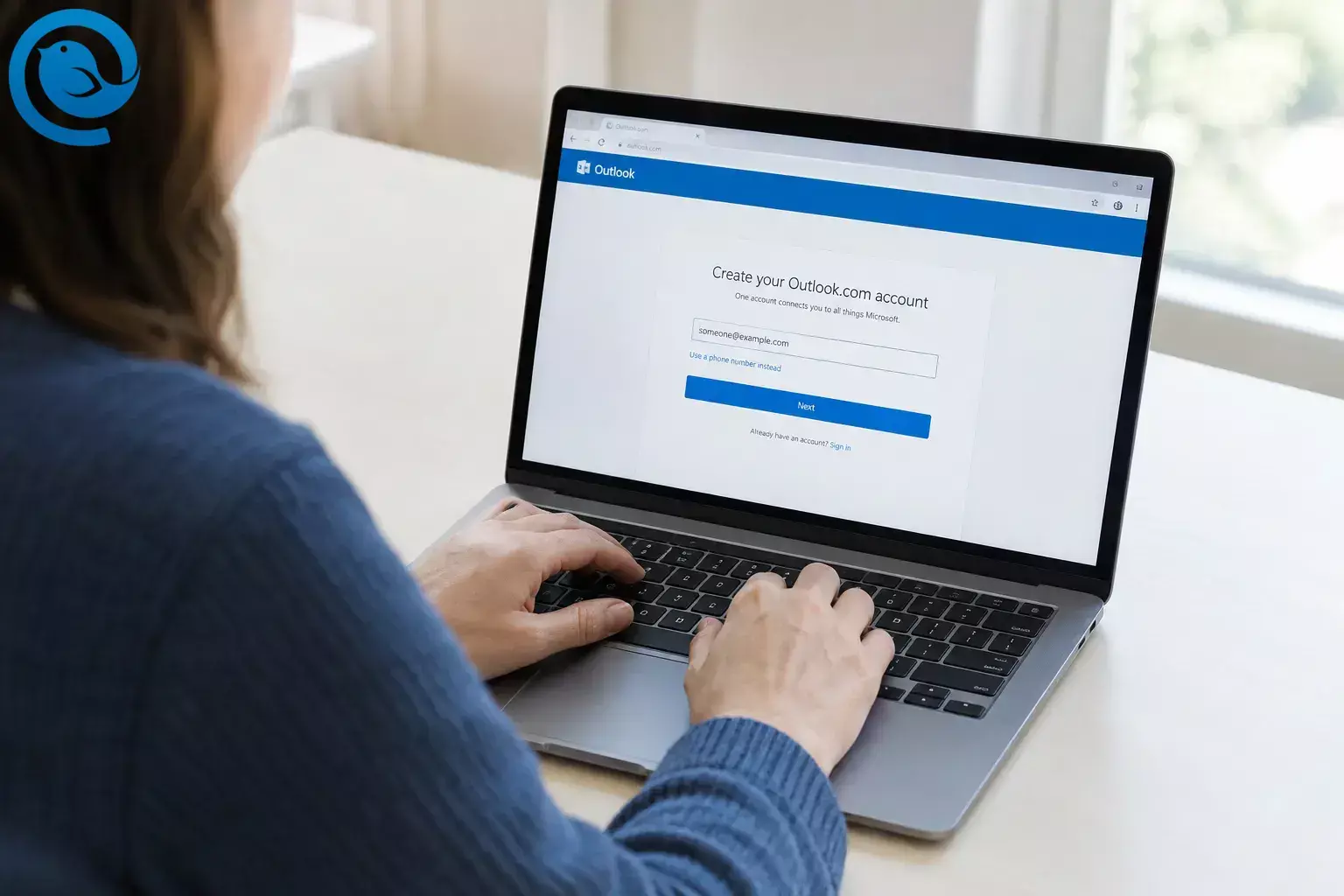
You can create a new Outlook email address in a browser on a computer or phone; you do not need an app or a paid subscription.
Quick answer
- To create a new Outlook email address, go to Outlook.com, select Create free account, choose an @outlook.com address, and complete the signup checks. [1] [2]
- If you already have a Microsoft account and only want another address for the same inbox, you can add an alias instead of creating a second account. [3]
Before you start
- Use a computer or phone with a browser and internet access.
- Think of a readable address that does not include private details such as your birth date. Have a few alternatives in case your first choice is taken.
- If you have another email address you can access, keep it handy for account recovery.
Create a new Outlook.com account
Create a new Outlook.com account
-
Open Outlook.com
In your browser, visit Outlook.com and select Create free account. The same website works on a computer, iPhone, or Android phone. [1]
-
Choose a new Outlook address
If Microsoft asks for an email address you already own, choose Get a new email address or the equivalent option. Select @outlook.com for the address you are creating. [2]
-
Pick your username
Enter the part before @outlook.com and select Next. A name such as jordan.lee.notes@outlook.com is easier to share than a long string of numbers. If the address is unavailable, try another name. [1] [2]
-
Follow the sign-in prompts
If asked to create a password, make it unique and save it securely. You may instead see prompts for a code or a passkey: Microsoft supports passwordless setup for new accounts. Follow the options shown on your screen. [4]
-
Enter your details and complete verification
Provide the name, country or region, and birth date requested. Complete any human-verification or security-code check, entering a code only on the Microsoft page where you started signup. Continue until your Outlook inbox opens. [1] [2]
-
Confirm and test your address
Check the full address shown in Outlook, including @outlook.com. Select New mail, send a message to your new address, and check Sent Items and Inbox. If an older inbox opens instead, sign out and sign in with the address you just created.
On a phone: Follow these steps in your phone’s browser. You are creating an address on the Outlook.com website, not adding an existing account to a mail app.
Secure your new account
-
Add a recovery email
Visit Microsoft account security and look for Manage how I sign in and Add a new way to sign in or verify. Add an email address you can access that is not an alias of this account, then confirm it using Microsoft’s instructions. Security-page labels may vary. [5]
-
Consider saving a passkey
In your security options, choose Add a new way to sign in or verify, then look for Face, Fingerprint, PIN, or Security Key. Follow your device’s prompts and note where the passkey is saved. A compatible phone, computer, or password manager can store one; a separate security key is not required. [6]
-
Check two-step verification
If you use a password, find Two-step verification under your account’s security settings and follow the prompts to turn it on. Set up backup verification methods you can still access before relying on it. [7]
Should you add an alias instead?
An email alias gives your existing Microsoft account another email address. It shares that account’s inbox, contacts, and settings; it does not create a separate inbox or sign-in. To make one, sign in to Manage how you sign in, select Add email, and choose to create a new Outlook.com address. [3]
For an independent inbox, create a new Outlook account using the signup steps above. If you are already signed in to another Microsoft account, sign out before you begin.
If signup does not work
- Your address is taken: Try a different readable name. Previously used Microsoft account addresses may not be available for reuse. [1]
- A verification email does not arrive: Check the correct inbox and its junk folder, confirm the address you entered, and avoid requesting codes repeatedly. [9]
- A verification option fails or is missing: Use another method if Microsoft offers one on-screen. Available methods can vary by account. [5]
- You keep opening an old inbox: Sign out, open a private browser window, and sign in with your complete new Outlook address.
- You signed up with Gmail but have no Outlook mailbox: An account created with only a third-party email address may need a new Outlook.com alias to use Outlook.com. Add one through your account’s alias settings. [8]
- A new alias does not appear: Sign out of Outlook.com, close your browser windows, and sign in again. [8]
Frequently asked questions
Is a new Outlook.com email address free?
Yes. You can create a personal address by selecting Create free account on Outlook.com. [1]
Do I need a phone number?
Signup checks can vary. Follow the verification options Microsoft offers on your screen; do not assume a phone-number option will be available. [5]
Does signing up with Gmail create an Outlook address?
Can I change my Outlook address later?
Why was I not asked to make a password?
Microsoft supports passwordless setup for new accounts. Follow the code or passkey prompts shown and keep access to your chosen sign-in method. [4]
Sources
- Microsoft Support: How to create a new Microsoft account
- Microsoft: Create an Outlook email account
- Microsoft Support: Change an account email address and manage aliases
- Microsoft Security Blog: Passwordless defaults for new accounts
- Microsoft Support: Security information and verification methods
- Microsoft Support: Create and save a passkey
- Microsoft Support: Two-step verification for a Microsoft account
- Microsoft Support: Fixes or workarounds for Outlook.com issues
- Microsoft Support: Troubleshoot verification-code issues


