The Ultimate Gmail Setup for Power Users: Expert Strategies for Inbox-Heavy Professionals (2026 Guide)
Email overload isn't a personal failing—it's a structural design problem. Most Gmail users rely on default configurations ill-suited for high-volume professional work, causing stress and inefficiency. This guide provides evidence-based strategies to transform Gmail from reactive chaos into an optimized, high-performance email command center.



If you spend most of your workday buried in your inbox, you're not alone—and you're likely frustrated. Email overload has become a structural problem for modern knowledge workers, with many professionals spending substantial portions of their day managing messages that arrive faster than they can process them. According to Harvard Business Review's research on email overload, unstructured inboxes and poorly managed expectations lead to stress, reduced deep-work capacity, and organizational inefficiency.
The challenge isn't just volume—it's that most Gmail users rely on near-default configurations that were never optimized for high-volume, high-stakes work. You're fighting your inbox with one hand tied behind your back, using tools designed for casual email users rather than professionals who live in their messages all day. The constant context-switching, notification interruptions, and visual clutter create cognitive overload that makes every workday feel like a battle.
This comprehensive guide synthesizes evidence-based strategies from official Google Workspace documentation, productivity experts, and real-world power user experiences to help you design a Gmail setup that actually works for intensive daily use. We'll cover everything from inbox layout strategies and advanced filters to keyboard shortcuts, AI-assisted workflows, and when a dedicated email client like Mailbird can transform your email experience from reactive chaos into a high-performance command center.
Understanding Email Overload as a Structural Problem
Before diving into solutions, it's important to recognize that your inbox struggles aren't a personal failing—they're a design problem. Gmail has evolved significantly within Google Workspace, introducing priority inboxes, AI-powered categorization, and integration with collaborative tools. However, as Gmail's Learning Center explicitly acknowledges, these benefits are only realized when users actively configure and maintain their environment.
The fundamental issue is that Gmail presents itself as a simple tool while functioning as complex infrastructure. For professionals who live in their inbox, Gmail isn't just an email client—it's a task manager, documentation hub, and central communication console. This infrastructural role means that without conscious systems for triage, prioritization, and batching, your inbox becomes a reactive environment that constantly pulls attention away from strategic work.
According to Harvard Business Review's analysis, the problem extends beyond tools to include cultural and behavioral factors. However, for those dealing with unavoidable high email volume—customer support professionals, project coordinators, content managers—the structural capabilities of Gmail become your primary lever for keeping email manageable rather than overwhelming.
Gmail as Infrastructure Rather Than a Single Tool
Understanding Gmail as infrastructure changes how you should approach configuration. As part of Google Workspace, Gmail functions as the front door to your digital office, connecting with Calendar, Drive, Docs, Chat, and Meet. This integration is powerful, but it also means that optimizing your email setup requires thinking beyond just the inbox.
Google's support for integrating Gmail with third-party email clients via IMAP and POP demonstrates this infrastructural design. According to official Google Workspace guidance on third-party email clients, Gmail can function as a backend service while you interact with it through different front-ends—whether that's the browser interface or dedicated desktop clients.
This distinction matters significantly for power users. Some workflows benefit from Gmail's browser-centric model with tight Workspace integration, while others need a unified desktop interface that treats email as a central application rather than another browser tab competing for attention. Understanding this choice is fundamental to designing your optimal setup.
Core Principles of an Effective Gmail Setup for Power Users
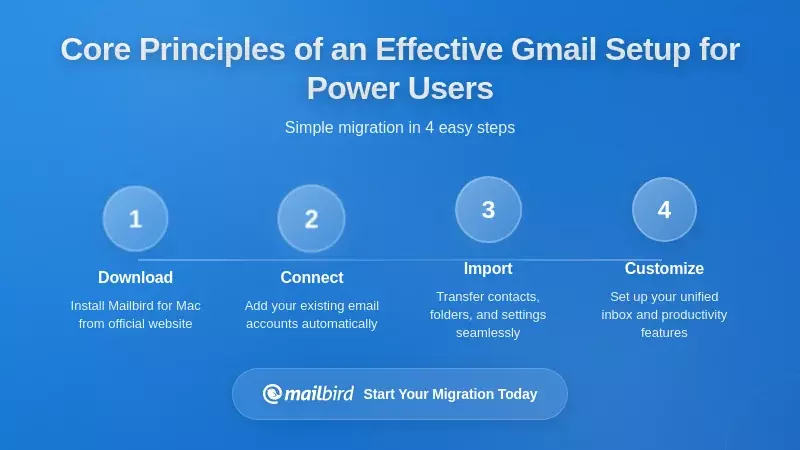
Building an effective Gmail configuration for intensive use rests on three foundational principles: prioritization of important messages, rapid triage of new inputs, and structural clarity that reduces cognitive clutter. These aren't optional enhancements—they're essential strategies for maintaining productivity and sanity when email dominates your workday.
Prioritization, Triage, and Inbox Structure
The first critical decision is selecting your inbox type. According to Google's documentation on choosing an inbox type, Gmail offers several configurations including "Important first," "Unread first," "Starred first," "Priority Inbox," and "Multiple Inboxes." Each reflects a different strategy for prioritization and triage.
"Priority Inbox" offers a hybrid approach that works exceptionally well for high-volume users. It allows sections such as "Important and unread," "Starred," and "Everything else," which can be further customized with label-based sections. This creates a structured hierarchy within a single inbox, ensuring high-value messages and tasks are visually and operationally separated from noise.
For professionals dealing with constant email flow, "Unread first" provides an alternative that forces you to process incoming items rather than letting them accumulate across multiple categories. As explained in comprehensive Gmail organization guides, this mode bundles all messages into one inbox and creates a clear binary: processed versus unprocessed.
Multiple Inboxes represents the most advanced structural option, allowing you to define up to five custom sections based on labels or search criteria. You can create dedicated views for newsletters, messages from specific senders, emails with attachments, or any combination of search operators. This effectively transforms your inbox into a dashboard where different "queues" are visible simultaneously—particularly valuable for managing different projects or responsibilities.
Speed, Friction, and Keyboard-Driven Operation
For people spending many hours in Gmail daily, interaction speed becomes as critical as structural organization. According to Google's official keyboard shortcuts documentation, users can enable shortcuts in Settings and access a comprehensive list of actions executable without a mouse.
These shortcuts cover navigation, message selection, labeling, archiving, reporting spam, and composing new messages. Power users can process emails exponentially faster than through point-and-click interactions. Google also provides custom keyboard shortcuts in Advanced settings, enabling you to remap keys to actions like Compose, Search, or Go to Inbox—particularly useful for those processing mail at high speed who want shortcuts aligned with muscle memory.
Critical shortcuts that transform Gmail efficiency include:
- Forward slash (/): Quickly initiate search
- Asterisk + a: Select all emails
- Asterisk + n: Deselect all
- Asterisk + r and asterisk + u: Select read and unread conversations respectively
- Ctrl/Command + Enter: Send messages
- k and j: Navigate between conversations
- e: Archive selected conversation
Beyond Gmail's native shortcuts, enabling the Auto-advance feature in Gmail's Advanced tab ensures that after deleting or archiving a message, Gmail automatically opens the next conversation. This single setting eliminates countless clicks during sequential processing, reducing friction that accumulates into significant time savings over a full workday.
Automation, AI, and Reducing Manual Repetition
The third core principle is leveraging automation to eliminate repetitive manual work. Gmail's filter system, described in detail in Google's optimization guide for Gmail inboxes, allows you to create rules from search criteria that automatically apply labels, archive messages, or skip the inbox entirely.
Filters turn repetitive sorting tasks into background processes. For example, you can create a search for invite.ics OR invite.vcs, filter for messages with attachments, then apply labels and skip the inbox to automatically manage calendar responses without manual triage. When combined with label-based inbox sections, these filters create a semi-automated system that keeps your main inbox focused on messages requiring attention.
Templates and Smart Compose further reduce manual work by streamlining message creation. Gmail's Advanced settings allow you to enable Templates, after which you can save commonly used messages and later insert them into new emails. For recurring communications like weekly reports, project updates, or standard responses, templates eliminate the need to retype the same content repeatedly.
Smart Compose uses AI to suggest completions for sentences and personalizes suggestions based on your habits. According to productivity experts analyzing Gmail features, this allows power users to speed through routine replies while maintaining consistent tone and phrasing.
Optimizing Gmail's Inbox Layout for High-Intensity Use
Once you understand the core principles, implementing them requires careful configuration of Gmail's layout options. The right inbox structure can mean the difference between constant overwhelm and manageable flow, even when dealing with hundreds of messages daily.
Selecting and Configuring Your Inbox Type
The Default inbox uses categories like Primary, Social, and Promotions to automatically classify messages based on machine learning. While this reduces clutter for casual users, power users often find categories less useful than their own labeling schemes. The automatic categorization can hide important messages in unexpected places and creates additional tabs to monitor.
"Important first" relies on Gmail's importance markers, placing messages the system deems important at the top. This works well if you're willing to train Gmail by occasionally marking messages as more or less important, but it requires trust in Gmail's intelligence and ongoing calibration.
For inbox-centric workers, "Unread first" or "Priority Inbox" typically offer the most control. Unread first ensures unprocessed items are always visible at the top, aligning with productivity techniques that emphasize clearing the queue regularly. Priority Inbox provides more nuance, allowing you to define sections like "Important and unread," "Starred," and "Everything else," then customize labels within sections.
Multiple Inboxes represents the most powerful option for those treating Gmail as a primary workspace. As demonstrated in detailed Multiple Inboxes tutorials, you can create sections such as:
- Action items: label:action
- Follow-up needed: label:follow-up
- Waiting for response: label:waiting
- Today's priority: label:today
- Newsletters: category:promotions
Each section displays as a separate pane, giving you a dashboard-like view of your email. This transforms Gmail from a chronological list into a structured workspace where different types of messages are immediately visible without searching.
Labels, Categories, and View Density
Labels form the foundation of Gmail's organizational power. Unlike folders, labels allow messages to carry multiple classifications, enabling sophisticated categorization. The key is designing a label system that mirrors your actual work structure rather than creating labels arbitrarily.
Effective label hierarchies typically include:
- Action-based labels: action, follow-up, waiting, later
- Project labels: project-name, client-name
- Reference labels: receipts, travel, important-docs
- Time-based labels: this-week, this-month
Gmail supports nested labels, allowing you to create hierarchies like "Clients > Client-A > Project-X" that appear in the sidebar as expandable sections. According to Gmail organization best practices, starting with broad categories and adding sub-labels as needed prevents label proliferation while maintaining clarity.
View density significantly impacts how much you can see at once. Gmail's Settings icon allows you to choose between Default, Comfortable, and Compact density. Compact packing more emails per page enables high-volume users to see more messages at a glance, reducing scrolling and improving overview. For professionals processing hundreds of messages daily, this seemingly small setting creates substantial efficiency gains.
The reading pane position—right side versus horizontal split—also affects workflow. A right-side pane provides better overview of the message list while still showing content, whereas a horizontal split maximizes reading space but shows fewer messages. Power users typically prefer the right-side pane for its balance between context and visibility.
Implementing Zero-Inbox Strategies
Gmail's snooze and archive features are essential for zero-inbox or low-inbox strategies, which productivity experts widely recommend for email-centric workers. According to Google's optimization documentation, you can snooze emails by selecting them and choosing a later date and time, effectively removing messages from the inbox until they become relevant.
Snoozing helps avoid constant re-evaluation of messages that aren't yet actionable while ensuring they reappear when needed. Combined with labels like "action," "follow-up," and "later," snoozing creates a system where you can defer work without losing track of it.
Archiving supports keeping the inbox clean without deleting messages. The "Send + archive" button, which can be enabled in General settings, automatically archives a conversation after sending a concluding reply. This prevents completed threads from lingering in the inbox, maintaining focus on active conversations.
A complete zero-inbox implementation involves:
- Process new messages into categories: action, follow-up, later, reference
- Apply appropriate labels
- Archive from main inbox
- Use Multiple Inboxes to display labeled sections
- Snooze items that aren't ready for action
This system ensures only currently actionable items remain visible in the primary inbox, while labeled and snoozed queues handle deferred work. The result is a sustainable approach to intensive email use that reduces overwhelm without losing information.
Advanced Filtering, Search Operators, and Content Triage
For professionals who live in their inbox, mastering Gmail's search operators and filter system is non-negotiable. These features transform Gmail from a passive message list into an active, intelligent workspace that handles routine categorization automatically.
Search Operators as a Power User Language
Gmail's search operators function as a query language for your inbox. According to Google's official guide on refining searches, operators include:
- from: Search by sender
- to: Search by recipient
- subject: Search in subject line
- label: Search by label
- has:attachment: Messages with attachments
- filename: Search for specific attachment types
- after: and before: Date-based searches
- older_than: and newer_than: Relative time searches
- is:important, is:starred, is:unread: Status-based searches
- size:, larger:, smaller: Size-based searches
You can combine operators with AND, OR, and minus (-) to create complex queries. For example:
- from:client@example.com has:attachment older_than:30d
- subject:(urgent OR important) -label:handled
- (from:manager OR from:director) is:unread
These operators turn Gmail into a searchable database where past communications can be rapidly retrieved. More importantly, they form the basis of advanced filters and Multiple Inbox configurations, making them essential knowledge for power users.
Filters and Automated Routing
Filters build on search operators to automate message handling. You can enter search terms, open advanced search options, then click "Create filter" to specify actions such as apply label, skip inbox, mark as important, or forward messages.
Effective filter strategies for high-volume users include:
- Sender-based routing: Automatically label messages from specific clients, managers, or teams
- Subject-based categorization: Route messages with keywords like "invoice," "urgent," or project names
- Plus-addressing workflows: Use addresses like yourname+newsletters@gmail.com and filter on the To: field to automatically categorize
- Calendar response handling: Filter for invite.ics OR invite.vcs with attachments to manage event responses
- Automated forwarding: Send certain message types to team members or other accounts
According to Google's filter documentation, you can also apply filters to existing conversations, not just new messages. This allows you to clean up historical messages when implementing a new organizational system.
The key to successful filtering is starting simple and iterating. Begin with obvious categories—newsletters, automated notifications, specific high-volume senders—then gradually add filters as patterns emerge. Over-filtering too early creates maintenance burden, while under-filtering leaves too much manual work.
Content-Based Prioritization and Smart Features
Beyond manual filters, Gmail's smart features use AI to prioritize content based on patterns and analysis. Smart Compose and Smart Reply leverage machine learning to suggest completions and quick responses, while importance markers predict which messages need attention.
For users subscribed to Google Workspace with Gemini AI, enabling "Smart features and personalization" in Gmail's General settings activates AI assistance in composition and organization. According to Google Workspace's blog covering AI developments, these features continue expanding, with new capabilities for organizing files and information across the Workspace ecosystem.
The balance for power users is calibrating smart features to enhance rather than override manual control. Smart Compose speeds up routine replies while allowing you to maintain your voice. Importance markers help surface critical messages but shouldn't replace your own judgment. Nudges can catch overlooked messages but may also create noise if not carefully configured.
A practical approach involves:
- Enable Smart Compose and personalization for composition assistance
- Use importance markers as signals, not absolutes
- Disable nudges if they feel intrusive
- Regularly train Gmail by marking messages as important or not important
- Combine AI features with manual filters for layered organization
Keyboard Shortcuts, Templates, and High-Speed Operation
Speed of interaction becomes critical when you spend hours in Gmail daily. Mastering keyboard shortcuts and templates can reduce email processing time by 30-50%, turning what feels like an endless task into manageable work.
Enabling and Customizing Gmail Shortcuts
Keyboard shortcuts must be explicitly enabled in Gmail. Go to Settings, select "See all settings," scroll to "Keyboard shortcuts," and switch to "Keyboard shortcuts on." Once enabled, pressing Shift + slash opens the shortcuts dialog listing all available commands.
Essential shortcuts for power users include:
- c: Compose new message
- /: Focus search box
- j and k: Navigate to newer/older conversation
- o or Enter: Open conversation
- u: Return to conversation list
- e: Archive conversation
- x: Select conversation
- #: Delete conversation
- !: Report as spam
- r: Reply
- a: Reply all
- f: Forward
- Shift + t: Add to Tasks
- Ctrl/Cmd + Enter: Send message
Gmail also allows custom keyboard shortcuts in the Advanced tab. You can remap keys to actions like Compose, Search, or Go to Inbox, which is particularly useful for aligning shortcuts with muscle memory from other applications.
The transformation comes from building shortcut habits. Initially, using keyboard commands feels slower than clicking. After a week of consistent use, shortcuts become automatic, and you'll find yourself processing messages without conscious thought about navigation. This cognitive offloading is where the real efficiency gains emerge.
Templates and Reusable Communication Patterns
Templates eliminate repetitive typing for recurring messages. Enable templates in Gmail's Advanced settings, then create a message in the Compose window and save it via the "More" menu. Later, insert templates into new emails by selecting from the same menu.
High-value template use cases include:
- Weekly reports: Pre-formatted structure with standard sections
- Project updates: Consistent format for status communications
- Client responses: Professional replies to common questions
- Meeting requests: Standard language for scheduling
- Follow-up messages: Polite check-ins with consistent tone
According to productivity experts, templates work best when they include the structure but leave room for personalization. A weekly report template might include section headers and standard language, but you fill in the specific updates. This balances efficiency with authenticity.
Google Docs extends templating by allowing collaborative email drafting. Type @ in a Google Doc, select "Email draft," and draft a message that teammates can edit before sending via Gmail. This workflow improves quality for complex or sensitive communications where multiple perspectives add value.
Timing Control: Undo Send and Schedule Send
Timing features prevent errors and enable strategic communication. Gmail's Undo Send cancellation period can be set to up to 30 seconds in General settings, giving you a window to retract messages sent prematurely. For high-volume users who occasionally send messages before adding attachments or double-checking recipients, this feature prevents embarrassing mistakes.
Schedule Send allows you to specify when a message will be sent, which is valuable for professionals corresponding across time zones. Click the arrow next to the Send button and choose a date and time. Scheduling emails to arrive during recipients' peak email-checking times can improve response rates and ensures your messages don't get buried in overnight accumulation.
The vacation responder, while used less frequently, maintains communication standards during breaks. Enable it in the General tab, specify dates, draft an auto-response, and choose whether to send replies to everyone or only contacts. For power users who live in their inbox during work periods, appropriate use of vacation responders contributes to sustainable workflow by allowing clear boundaries during off-time.
Notifications, Mobile Workflows, and Cross-Device Consistency
For inbox-centric workers, notification settings are double-edged. They can ensure prompt responses but also risk constant interruption that fragments attention and reduces deep work capacity. The key is designing notification strategies that support responsiveness without creating reactivity.
Desktop Notifications and Sound Cues
Gmail's desktop notifications can be configured in Settings under "Desktop notifications." Options include "New mail notifications on," "Important mail notifications on," and "Mail notifications off." According to Google's notification documentation, these work in Chrome, Firefox, and Safari after signing in and opening Gmail.
The recommended configuration for power users is "Important mail notifications on". This limits alerts to messages Gmail predicts are crucial, reducing constant interruption while maintaining responsiveness to critical communications. You can also choose notification sounds or select None to disable audible alerts.
Productivity experts often recommend disabling certain nudges and smart features that attempt to draw attention back to older messages. These features can feel more annoying than helpful for some users, creating artificial urgency around messages you deliberately chose not to pursue. The goal is notification discipline that supports your priorities rather than Gmail's predictions.
Mobile Gmail and Gesture-Based Triage
Power users often engage with Gmail from mobile devices, making cross-device consistency important. Gmail's mobile app supports the same search operators as desktop, allowing you to maintain efficient search behavior across devices. Tap the search box and enter operators like from:, to:, subject:, or label: to find information quickly while away from your workstation.
Mobile swipe actions enable fast triage. In Gmail's mobile settings, you can configure right-swipe and left-swipe actions. A recommended configuration is right-swipe to Archive and left-swipe to Move (label and archive), enabling one-gesture organization and archiving. This allows you to process emails quickly on mobile by archiving messages requiring no action and categorizing those that do.
For power users, aligning mobile triage behaviors with desktop structures creates seamless multi-device workflow. Use the same labels on mobile as desktop, adopt archive-heavy habits on both platforms, and ensure notification settings match across devices. This consistency prevents confusion and maintains your organizational system regardless of where you access email.
Cross-Device Synchronization and Client Integration
Gmail's support for IMAP and SMTP enables consistent message access across devices and clients. According to Google's documentation for third-party email clients, you can connect to Gmail using imap.gmail.com on port 993 with SSL encryption for receiving mail, and smtp.gmail.com on port 587 with TLS encryption for sending.
This infrastructure design means Gmail's backend remains consistent whether you access it through the web interface, mobile app, or desktop clients. For inbox-centric workers, this opens the possibility of hybrid workflows: using Gmail Web for its Workspace integration and AI features while leveraging a dedicated desktop client for focused processing on your main workstation.
AI-Assisted Gmail and Emerging Features
AI capabilities in Gmail have expanded significantly, with implications for how power users should configure their setups. These features can dramatically reduce manual effort, but they require thoughtful calibration to enhance rather than complicate your workflow.
Smart Compose, Smart Reply, and AI Assistance
Smart Compose uses machine learning to suggest sentence completions based on patterns from large datasets and your individual behavior. Enable it under the General tab by toggling Writing Suggestions and Personalization on. This reduces typing for repetitive content and helps maintain consistent phrasing across communications, especially valuable for high-volume correspondents.
Smart Reply offers quick one-click responses like "Got it, thanks" or "I'll take a look," which can clear low-stakes messages rapidly. While these seem simple, they accumulate significant time savings when processing dozens of routine messages daily.
For paid Gemini subscribers, enabling "Smart features and personalization" in Gmail's settings activates AI assistance in composition and organization. According to Google Workspace's coverage of AI features, this includes capabilities for organizing information and providing intelligent suggestions across Gmail, Drive, and other Workspace apps.
AI Inbox and Priority Views
Google's experimental AI Inbox represents a significant evolution in inbox structure. According to recent announcements, AI Inbox introduces sections like "Priorities" and "Catch me up," designed to present important emails and summarize activity. The "Priorities" section provides an overview of important emails with associated tasks and deadlines, while "Catch me up" offers an easy-to-view recap of activity.
This design reflects Google's broader AI strategy, using intelligence to surface what matters most and reduce manual scanning. For users who live in Gmail, AI Inbox could become a central feature if it proves reliable and aligns with work patterns. However, as a new feature undergoing testing, it's important to maintain the ability to override AI decisions via labels, filters, and manual markings.
The best approach for now is to treat AI Inbox as an emerging option to evaluate rather than a default assumption. Enable it when available, test whether it improves your workflow, but maintain your structural organization and filters as the foundation of your system.
Balancing AI with Human Oversight
While AI features can significantly enhance Gmail use, their adoption must be balanced with human oversight. Not all smart features benefit every user—some create noise rather than clarity. The principle is to leverage automation and AI where they reliably reduce manual, low-value effort, while keeping human judgment central for high-stakes decisions.
Conservative users may prefer limiting AI to composition assistance and search, while more experimental users might adopt AI Inbox and other advanced features. Both approaches are valid; the key is aligning AI adoption with your specific workflow and regularly evaluating whether features add value or distraction.
When a Dedicated Email Client Makes Sense: The Mailbird Solution
While Gmail's web interface is powerful, many inbox-centric professionals find that a dedicated desktop email client fundamentally improves their daily experience. This is where understanding Gmail as infrastructure rather than just an interface becomes crucial.
Understanding the Email Client vs. Webmail Decision
Gmail Web excels at "sign in and go" convenience, automatic updates, and seamless integration with Google Workspace apps. It's ideal when you frequently switch devices, work from shared computers, or need consistent access from anywhere. However, this browser-centric approach has limitations for power users.
According to analysis comparing email clients and webmail, dedicated desktop clients offer distinct advantages:
- Unified inbox across multiple accounts: Manage Gmail, work email, and other accounts in a single view
- Desktop workspace focus: Email as a central application rather than another browser tab
- Offline capability: Beyond limited browser cache, full access to messages without connection
- Reduced browser distraction: Separate email from web browsing to minimize context-switching
- Performance optimization: Dedicated resources rather than competing with browser tabs
The decision isn't binary—many power users benefit from hybrid approaches. Use Gmail Web for its AI features and Workspace integration while relying on a desktop client for daily high-volume processing on your main workstation.
Mailbird as a Gmail Power User Front-End
Mailbird is a Windows-based email client specifically designed for professionals who manage multiple accounts and need a focused desktop workspace. According to Mailbird's setup guide, it connects to Gmail using the same IMAP and SMTP settings Google recommends: imap.gmail.com on port 993 with SSL, and smtp.gmail.com on port 587 with TLS.
This technical alignment means Gmail's backend remains identical whether you access it through Gmail Web or Mailbird. Your labels, filters, and organizational structure sync between interfaces. Messages you archive in Mailbird are archived in Gmail Web, and vice versa. You're not choosing between platforms—you're choosing the best front-end for different contexts.
Mailbird's core strengths for inbox-centric workers include:
- Unified inbox: View messages from multiple Gmail accounts and other providers in a single stream
- Clean, focused interface: Designed specifically for email processing without browser distractions
- Keyboard shortcuts: Power-user shortcuts for rapid navigation and processing
- Fast performance: Dedicated application optimized for email rather than general browsing
- Customizable layout: Adjust density, reading pane position, and visible elements to your preferences
- Integration capabilities: Connect with calendar, task management, and other productivity tools
According to user reviews on G2, professionals consistently praise Mailbird's clean interface, fast performance, and ability to integrate multiple accounts into a unified view. These traits directly address the pain points of managing high email volume across multiple accounts—a common scenario for professionals juggling personal, work, and client communications.
When Mailbird Makes the Most Sense
Mailbird is particularly valuable when you:
- Manage multiple email accounts: Two or more Gmail accounts plus other providers
- Work primarily from one computer: Desktop workstation where you spend most of your day
- Need focused email time: Want email separate from browser tabs and web distractions
- Process high message volume: Hundreds of emails daily requiring efficient workflows
- Value desktop performance: Prefer dedicated applications over browser-based tools
- Want unified notifications: Centralized alerts across all accounts in one place
According to user feedback on Capterra, professionals appreciate Mailbird's ease of setup, handling of multiple accounts, and strong customer support. The consistent theme is that Mailbird reduces friction in daily email management, allowing users to focus on content rather than fighting their tools.
Implementing a Gmail + Mailbird Hybrid Workflow
The optimal setup for many power users combines Gmail Web and Mailbird strategically:
- Use Gmail Web for: Mobile access, Workspace collaboration, AI features, quick checks from any device
- Use Mailbird for: Daily processing on your main workstation, unified multi-account view, focused email sessions
- Maintain consistency: Same labels, filters, and organizational structure across both interfaces
- Leverage strengths: Gmail Web for integration, Mailbird for performance and focus
This hybrid approach gives you flexibility without sacrificing the power of either platform. Your Gmail infrastructure—labels, filters, search operators, templates—works identically in both interfaces. You simply choose the best tool for each context: Mailbird when you need to process volume efficiently, Gmail Web when you need Workspace integration or mobile access.
Implementation Strategy: Building Your Optimal Gmail Setup
Understanding all these features is valuable, but inbox-centric workers need a practical implementation path. Here's a phased approach to transforming your Gmail setup from default chaos to optimized command center.
Phase 1: Foundation (Week 1)
Focus on structural decisions and basic automation:
- Choose your inbox type: Priority Inbox or Unread first based on your work style
- Create core labels: action, follow-up, waiting, later, plus project/client labels
- Set up basic filters: Automated routing for newsletters, notifications, high-volume senders
- Configure view settings: Compact density, right-side reading pane, hide unused system labels
- Enable keyboard shortcuts: Turn on shortcuts and print the reference list
This foundation establishes your organizational structure without overwhelming complexity. Spend the first week getting comfortable with labels and basic shortcuts before adding advanced features.
Phase 2: Optimization (Week 2-3)
Add speed and automation features:
- Master keyboard shortcuts: Practice core commands until they become automatic
- Create templates: Save recurring messages as templates
- Enable Smart Compose: Turn on AI writing assistance
- Configure notifications: Set to "Important mail only" and disable distracting nudges
- Set up Multiple Inboxes: If using, create label-based sections for different work queues
- Implement snooze workflow: Start deferring non-urgent messages
- Enable Auto-advance: Automatically move to next message after archiving
By week three, you should notice significant speed improvements in email processing. The combination of shortcuts, templates, and automation reduces time per message substantially.
Phase 3: Advanced Features (Week 4+)
Layer on advanced capabilities:
- Refine filters: Add sophisticated routing based on patterns you've observed
- Master search operators: Use complex queries for finding information quickly
- Enable AI features: If using Gemini, turn on smart features and personalization
- Optimize mobile: Configure swipe actions and ensure label consistency
- Consider Mailbird: If managing multiple accounts, evaluate a desktop client
- Implement zero-inbox: Commit to label-based organization and regular archiving
After a month of deliberate practice, your Gmail setup should feel dramatically different from where you started. The key is iterative improvement rather than trying to implement everything at once.
Common Pitfalls to Avoid
Based on expert guidance and user experiences, watch out for these common mistakes:
- Over-filtering too early: Start simple and add filters as patterns emerge
- Ignoring spam folder: Check monthly to ensure desired messages aren't lost
- Inconsistent cross-device behavior: Align mobile and desktop settings
- Letting email dictate schedule: Use notification discipline and structured processing sessions
- Creating too many labels: Start broad and add granularity only when needed
- Enabling all AI features blindly: Evaluate each feature's impact on your workflow
- Assuming unified inbox solves everything: Desktop clients still require good label and filter design
The most important principle is treating your Gmail setup as a living system that evolves with your work patterns rather than a one-time configuration.
Frequently Asked Questions
What's the best Gmail inbox type for professionals who process hundreds of emails daily?
For high-volume users, Priority Inbox or Unread first typically work best. Priority Inbox allows you to create customized sections like "Important and unread," "Starred," and "Everything else," with additional label-based sections for different work queues. This provides structured hierarchy within a single view. Unread first offers a simpler approach by keeping all unprocessed messages at the top, creating a clear binary between processed and unprocessed items. According to Google's inbox type documentation, both configurations support the rapid triage and prioritization that inbox-centric workers need. Multiple Inboxes represents the most advanced option, allowing up to five custom sections based on search criteria—ideal if you treat Gmail as a multi-queue task manager. The choice depends on whether you prefer AI-assisted prioritization (Priority Inbox), manual processing discipline (Unread first), or dashboard-style visibility (Multiple Inboxes).
How can I reduce email overload without missing important messages?
The solution involves combining structural organization with notification discipline. First, implement a label-based system with categories like "action," "follow-up," "waiting," and "later," then create filters to automatically route low-priority messages (newsletters, notifications) to labeled sections while keeping your main inbox focused on messages requiring attention. According to Google's optimization guidance, using Multiple Inboxes or Priority Inbox with label-based sections ensures important items remain visible while reducing clutter. Second, configure notifications to "Important mail only" rather than alerting for every message, which reduces constant interruption while maintaining responsiveness to critical communications. Third, adopt scheduled email processing sessions rather than constant inbox checking—research from Harvard Business Review on email overload shows that batching email processing reduces stress and improves focus. Finally, use snooze functionality to defer messages that aren't yet actionable, preventing constant re-evaluation while ensuring they reappear when relevant.
Should I use Gmail's web interface or a desktop email client like Mailbird?
The best approach for most power users is a hybrid strategy that leverages both interfaces strategically. Gmail Web excels at Workspace integration, AI features, and access from any device, making it ideal for mobile use, quick checks, and collaborative work. According to analysis comparing email clients and webmail, desktop clients like Mailbird are superior when you manage multiple accounts (offering unified inbox views), work primarily from one computer, need focused email processing time separate from browser distractions, and value dedicated application performance. The technical reality is that Mailbird connects to Gmail via IMAP/SMTP using Google's recommended secure settings, meaning your Gmail backend—labels, filters, organizational structure—remains identical across both interfaces. Use Gmail Web for its unique strengths (Workspace collaboration, AI features, mobile access) and Mailbird for daily high-volume processing on your main workstation where its unified inbox and focused interface dramatically improve efficiency.
What keyboard shortcuts are most important for Gmail power users?
The highest-impact shortcuts for inbox-centric workers are those enabling rapid navigation and message processing without mouse use. According to Google's official keyboard shortcuts guide, essential commands include: j and k for moving between conversations, e for archiving, x for selecting conversations, asterisk + a for selecting all, c for composing new messages, / for search, Ctrl/Cmd + Enter for sending, and Shift + t for adding to Tasks. For bulk operations, asterisk + r and asterisk + u select all read or unread conversations respectively, enabling rapid processing of large batches. The transformation comes from building muscle memory—after consistent use for one to two weeks, these shortcuts become automatic, allowing you to process messages without conscious navigation decisions. Enable shortcuts in Gmail Settings under "Keyboard shortcuts," and consider customizing key mappings in the Advanced tab to align with your preferred workflow. The combination of navigation shortcuts (j/k), action shortcuts (e for archive, # for delete), and selection shortcuts (x, asterisk combinations) can reduce email processing time by 30-50% compared to mouse-based interaction.
How do I set up Gmail filters to automatically organize incoming messages?
Effective filter implementation starts with identifying patterns in your inbox, then creating rules that automatically apply labels, archive messages, or perform other actions. According to Google's filter documentation, the process involves entering search terms in Gmail's search box, opening advanced search options, then clicking "Create filter" to specify actions. Start with obvious categories: newsletters (filter by sender domain, apply "newsletters" label, skip inbox), automated notifications (filter by subject keywords like "notification" or "alert," apply label, skip inbox), and high-volume senders you want categorized (filter by from: address, apply client/project label). Use Gmail's search operators like from:, to:, subject:, has:attachment, and combinations with AND/OR to create precise rules. For example, from:client@example.com has:attachment catches all messages with attachments from a specific client. The key is starting simple—implement 3-5 obvious filters first, observe their impact for a week, then gradually add more sophisticated rules as you identify additional patterns. Over-filtering too early creates maintenance burden, while under-filtering leaves too much manual work. Aim for filters that handle 40-60% of your incoming volume, keeping your main inbox focused on messages requiring human judgment.


